UX / Design · Digital Marketing · Tools
10 Tips for HTML Banner Creation with Animate CC
Every programme has its unique challenges. We will show you what to consider when creating HTML banners with Adobe Animate CC. Summarised here are the most common problems I encounter in my training sessions.
1. Advanced Layers
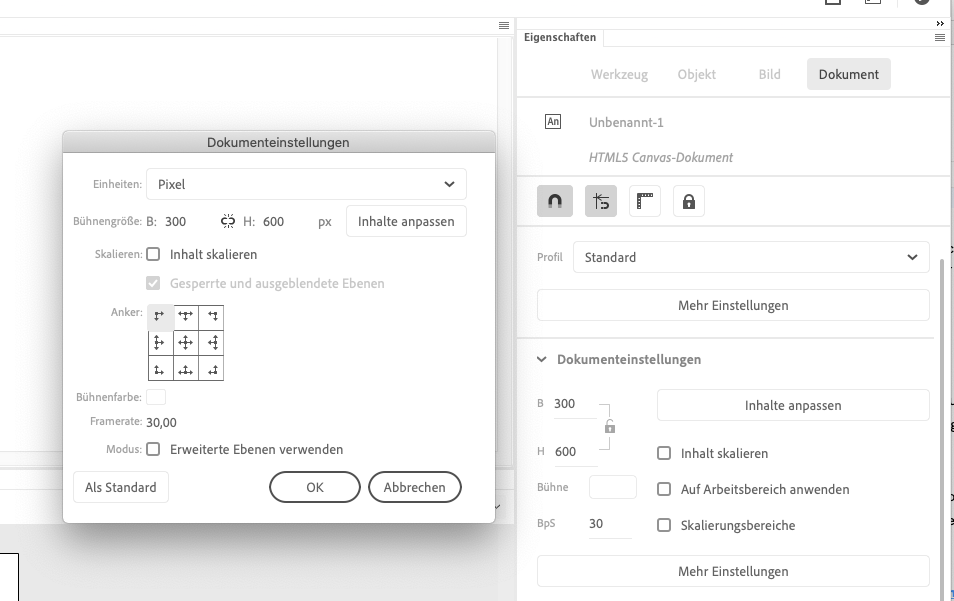
You'll find Advanced Layers in the properties under 'More Settings'. The checkbox should NOT be ticked. Advanced layers are needed for shenanigans with the camera. However, this causes problems with ad servers. Perhaps this will change in the future (fingers crossed).
2. Name it!
Name your layers, name your symbols, name your functions! All things need a name.
3. Tweens
We use Classic Tweens and Shape Tweens, not Motion Tweens! Motion Tweens are converted into individual frames and make the banner unnecessarily larger.
4. Exporting Images
Animate's default publishing settings are not suitable for banners. The image elements, in particular, cause issues here. We want NO texture and NO sprite sheet, but individual image elements. Furthermore, no extra folder should be created for them. We want all elements in the same folder as the HTML and JS files (subdirectories do not comply with the IAB standard).
(A sprite sheet only makes sense if we have many small PNGs with transparency)
We need the image elements individually to compress them extra specially. This way, we can optimally use PNGs with transparencies and JPGs together. For compression, we like to use tinypng.com (you can run the compressed images through again to reduce their size even further).
5. Shadows, Glow, and Other Effects
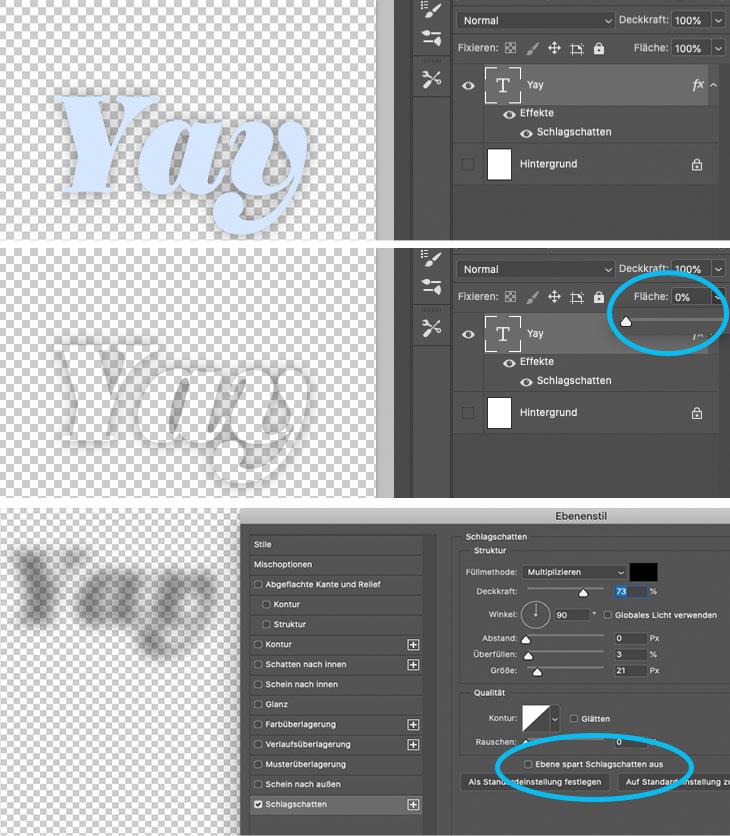
Avoid these effects. If shadows are absolutely necessary, you can create them in Photoshop and transfer them as a transparent PNG.
To do this, set the fill to 0%. If the shadow is not then visible, double click on the effect and uncheck 'Layer Knocks Out Drop Shadow'.
Then go to Image > Trim > Transparent Pixels and export your shadow as a PNG24.
By compressing multiple times, you create a lighter banner than if you use effects.
6. Test Banners
Before you send your banners to the client, it's good to check for yourself if everything worked well. I test my IAB banners here: https://www.html5check.at My Google banners here: https://h5validator.appspot.com/dcm/asset And Adwords banners here: https://h5validator.appspot.com/adwords/asset
7. Insert Easings
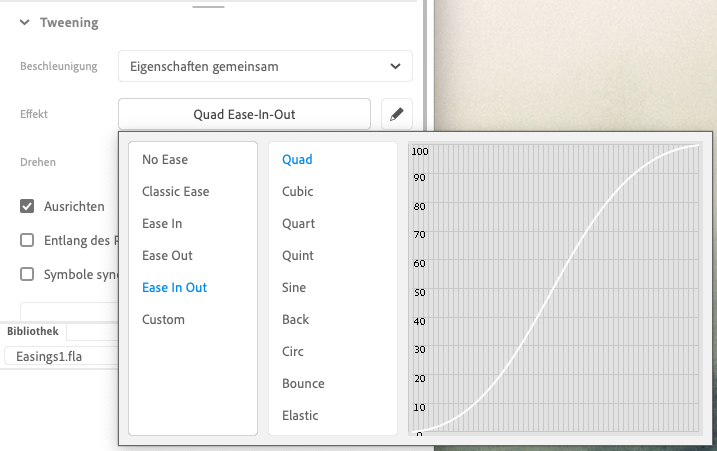
Linear movements are not found in nature. They are also not particularly pleasant to look at. How fortunate that we have easings! While we lack the useful Speed Graph from After Effects, we can use Animate's simple easings to achieve quick improvements in our animation! We can apply them to both Classic Tweens and Shape Tweens. To do this, we click on any frame of the tween arrow between the two keyframes and select the Ease in-Out > Quad effect in the Tweening properties (you must press Enter twice to select!).
8. Large JS File
A large JS file can mean that you have too many anchor points in your vector images. Perhaps try using a PNG instead? If it's a repeating element, then turn an element into a symbol and then duplicate it directly in Animate! If your Javascript file is still too large, you can shed a few more KB: https://javascript-minifier.com
9. Too Many Files in the Ad Creative?
This can easily happen when creating banners on a Mac. When we zip with Finder, additional copies of the files are created in the Zip archive. To avoid this, we can use external Zip programmes to act as if we were a PC. I use YemuZip for this.
10. Banner Stop
If this.stop(); is not enough:
Your banner should stop after 30 seconds, but nested movie clips cause problems for the ad server, meaning the next banner cannot be loaded? This function ensures that everything stops after 30 seconds.
function StopAllTheThings() { createjs.Ticker.removeEventListener('tick', stage); } setTimeout(StopAllTheThings,30000);
Create a new layer for your code and insert this function under Window > Action on the first keyframe. If everything worked, a small 'a' will appear above your empty keyframe. By the way, it doesn't matter what you call this function. You can change StopAllTheThings as you wish (no umlauts, no special characters!). It is only important that the exact same name appears in both lines. Pay attention to case sensitivity! Here, as with any code: Don't try to be a hero > Copy Paste!
If you need further support, or would prefer to outsource banner production, we can take care of it for you.